Order Port
Order a Cloud Connect Port
This topic describes how to order a Port in the Cloud Connect Portal. Your organization’s port is the physical point of connection between your organization’s network and the Cloud Connect Network. You will need to order a Port wherever you want to direct traffic. The Cloud Connect Portal steps are through selecting country, city, and data center location, specifying the Port details, and placing the order.
Prequisites
Before proceeding to order a Cloud Connect port, you must have a Cloud Connect account. Ensure that you have set up your Cloud Connect Portal Account.
How to Order a Cloud Connect Port
To order a new Port
- Log in to Cloud Connect Portal.
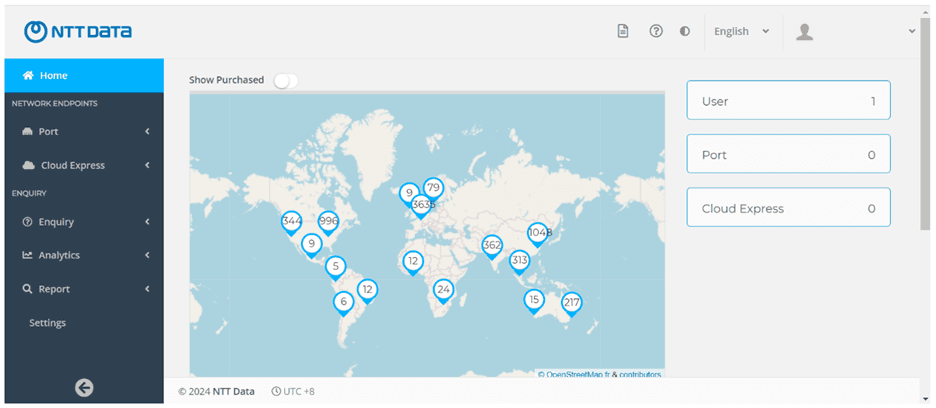
- After successfully log in, you will see this Dashboard
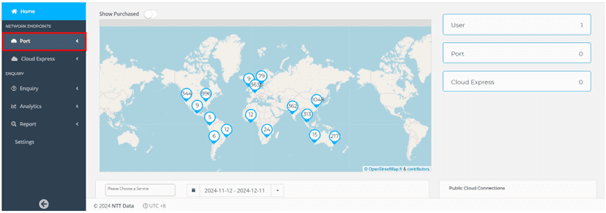
- Go to the left side of the Dashboard, then click the Port.
- Select the Order a Port
In this page, you will choose your Country, City, and Data Center of your destination port. Each section will be provided along with a location map, icon of the location, and number of sites in different Country locations.
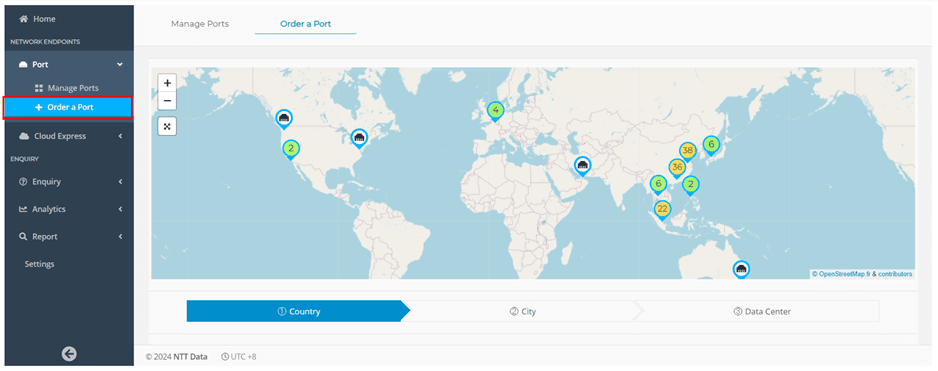
- Scroll down then click your preferred Country location
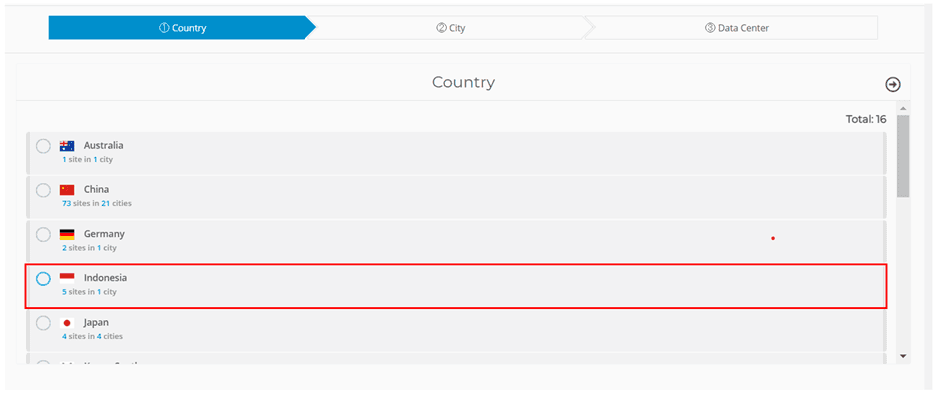
- Next, Select your preferred City
This page will displayed the location map and the number of sites available in the Country you have selected.
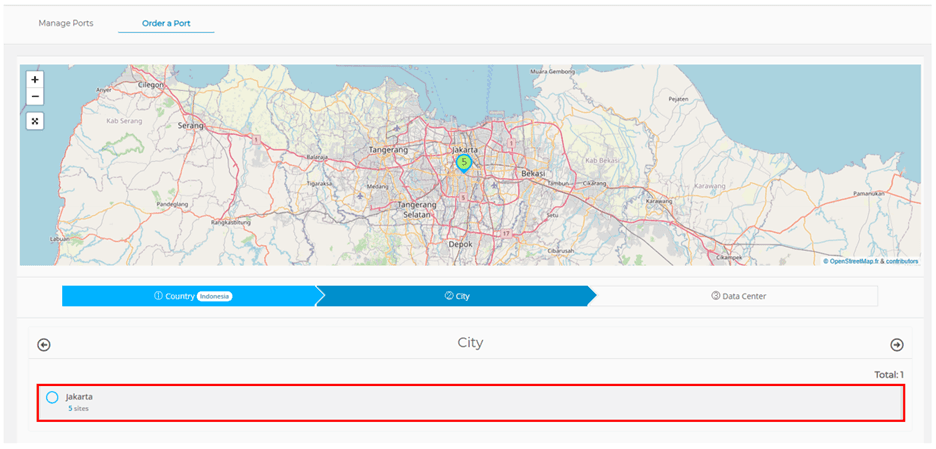
- Select your preferred Data Center.
This page will show the list of available data centers in your preferred City.
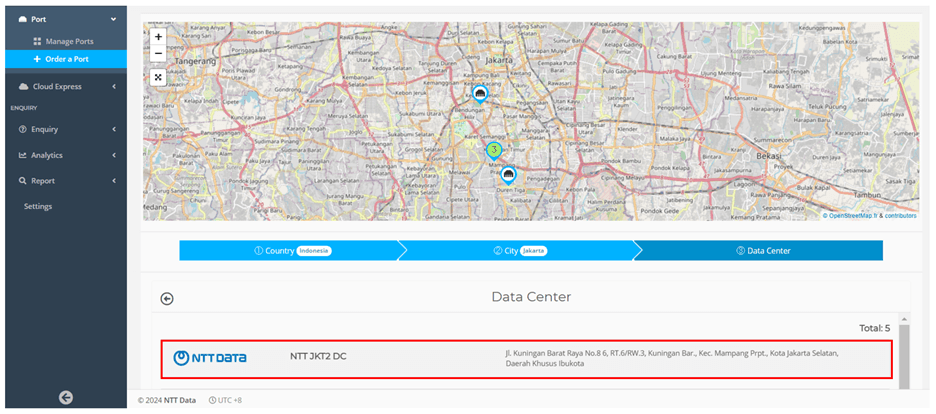
- Specify the Order Port details
- Select your Contract Period, the minimum period is in 12 Months.
- Enter your Purchase Order Number.
- Enter your MTU (Bytes) or Maximum Transmission Unit for your port.
- Select your desired Port Type, consist of QinQ Tunnel Port (Access Mode), QinQ Trunk Port, or Trunk Port.
- Select your Port Speed, listed speeds consist of 1 G, 10 G, 40 G, or 100 G. Ensure that your equipment is capable of interfacing with the selected speed.
- Select your Transceiver, listed Transceiver consist of 1G-BASE-LX, 1G-BASE-T, 10G-BASE-LR, 40G-BASE-LR4, 100G-BASE-LR4, or Other.
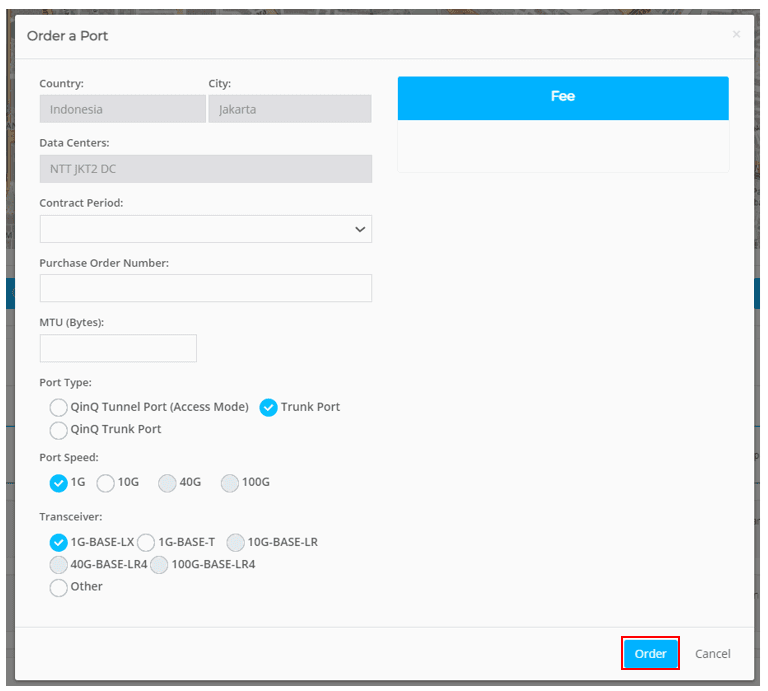
- In the right side of the port details page, you will view the Summary Fee of your order.
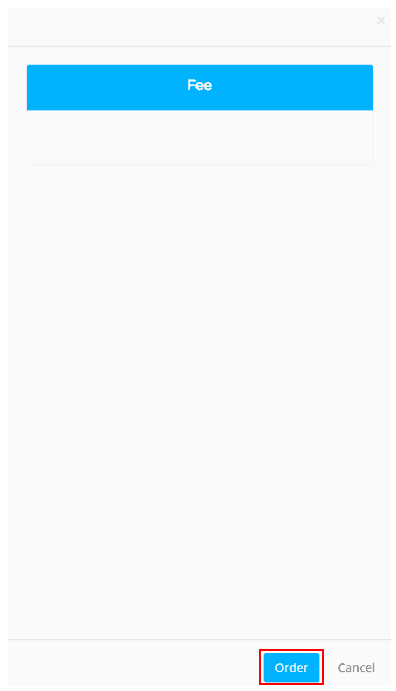
- Review your order information, then click Order to deploy the new Port or click Cancel if you want to cancel your order.
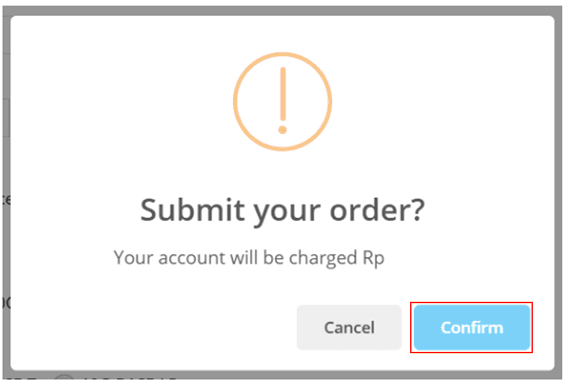
- Click Confirm to submit your order. You will receive Order Confirmation in your account email.
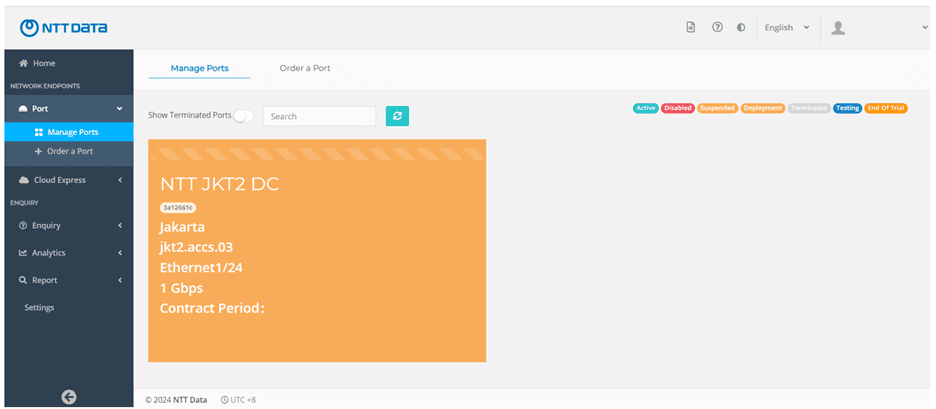
- After that, you will be redirected to Manage Ports menu to monitor your port status.