
GCP Partner Interconnect
Create a GCP Partner Interconnect
This topic describes how to create a GCP Partner Interconnect in the Cloud Connect Portal from Cloud Express.
Prequisites
Before proceeding to order a GCP Partner Interconnect, you must have:
- A GCP Account
- A Cloud Connect account, to ensure that you have set up your Cloud Connect Portal Account.
How to Create a GCP Partner Interconnect Connection
To create a GCP Pairing Keys in GCP:
- Log in to the GCP Console.
- In the Google Cloud Platform, enter Interconnect in the search bar.
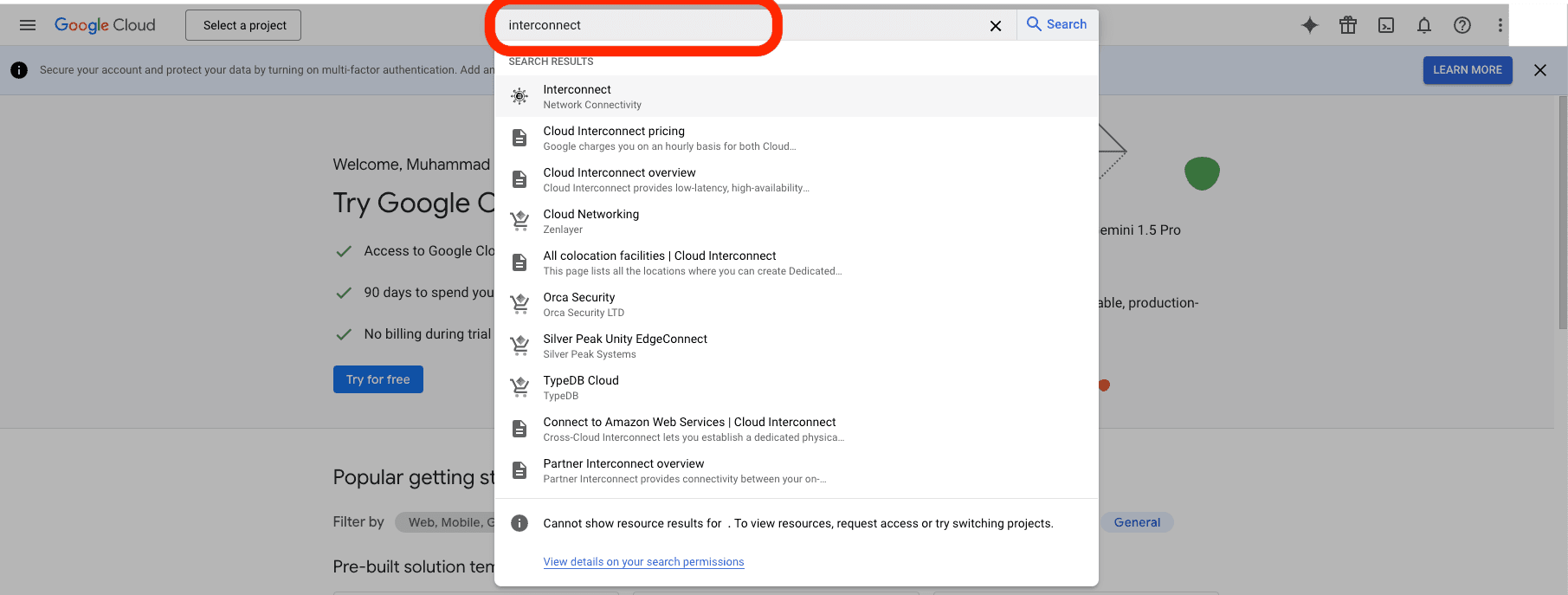
- Select Interconnect, then navigate and click Create VLAN Attachments.

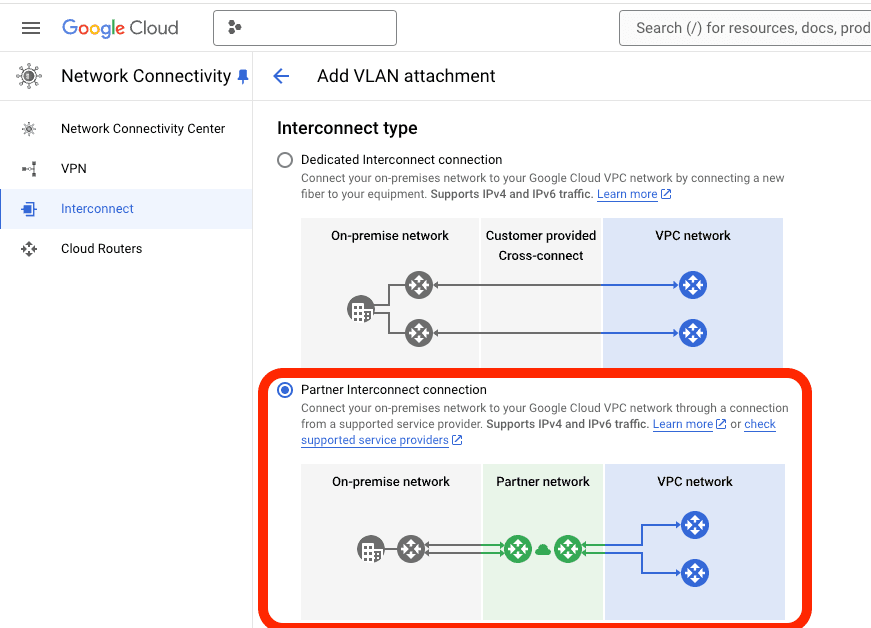
- Choose the Interconnect type as Partner Interconnect connection.
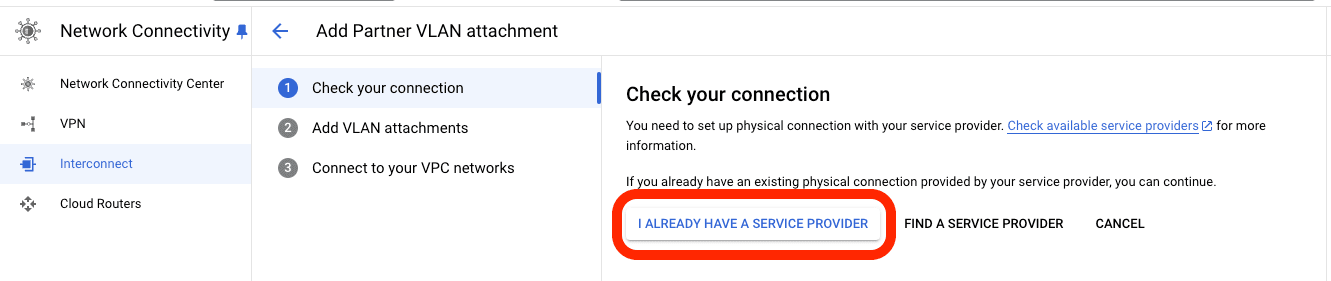
- Next for the physical connection, choose I already have a service provider because Cloud Connect will be the service provider.
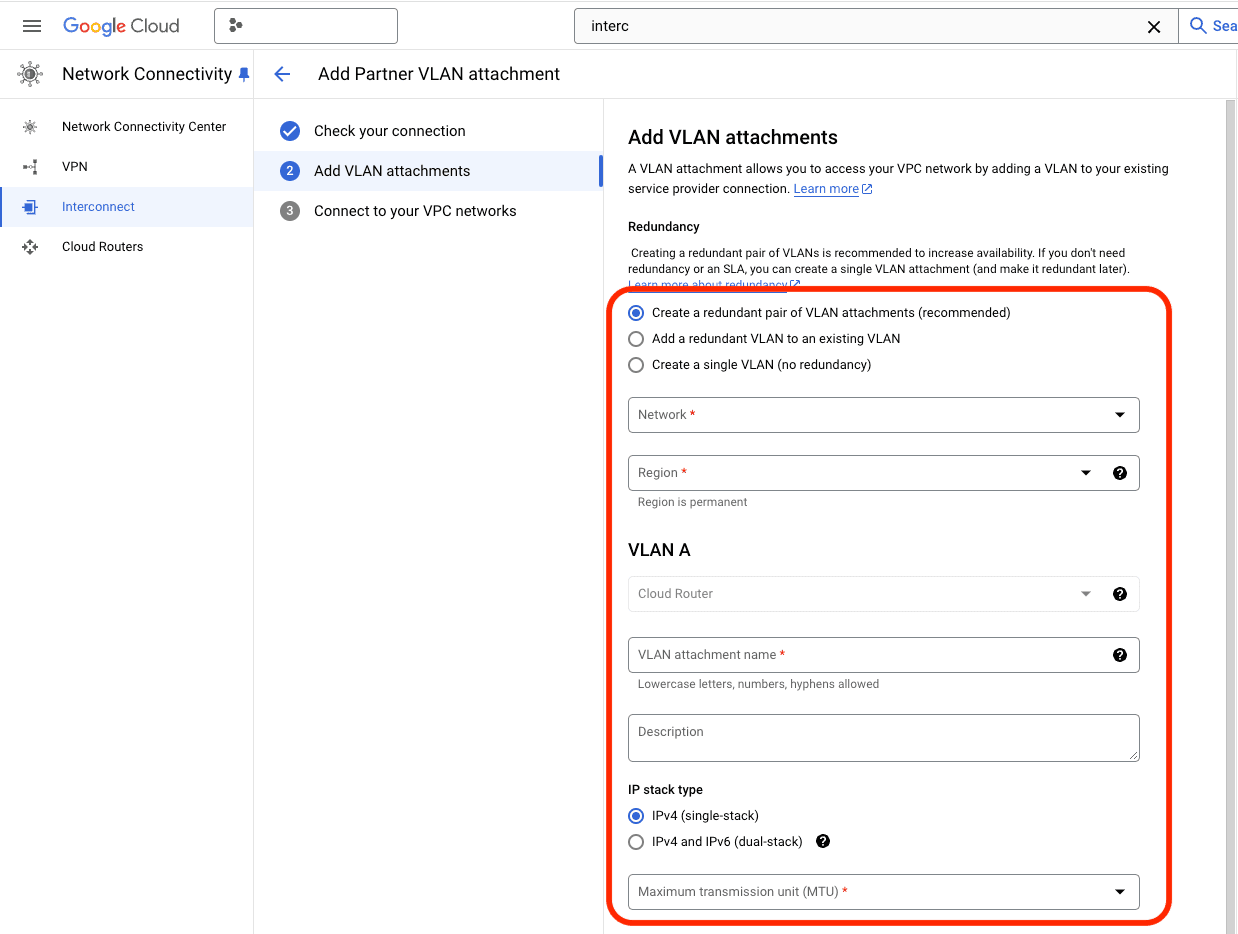
- Select a Redundancy option, choose Create a redundant pair of VLAN attachments (recommended)
- Select the VPC network and Region
- For the VLAN A:
- (Optional) Select the Cloud Router.
- Enter the VLAN Attachment name.
- (Optional) Enter the Description.
- Choose IPV4 (single-stack) for the IP stack type.
- Select the Maximum transmission unit (MTU).
- For the VLAN B:
- (Optional) Select the Cloud Router.
- Enter the VLAN Attachment name.
- (Optional) Enter the Description.
- Choose IPV4 (single-stack) for the IP stack type.
- Select the Maximum transmission unit (MTU).
- Copy the Pairing Keys provided in the clipboard, then click OK.
The status will be displayed from the service provider.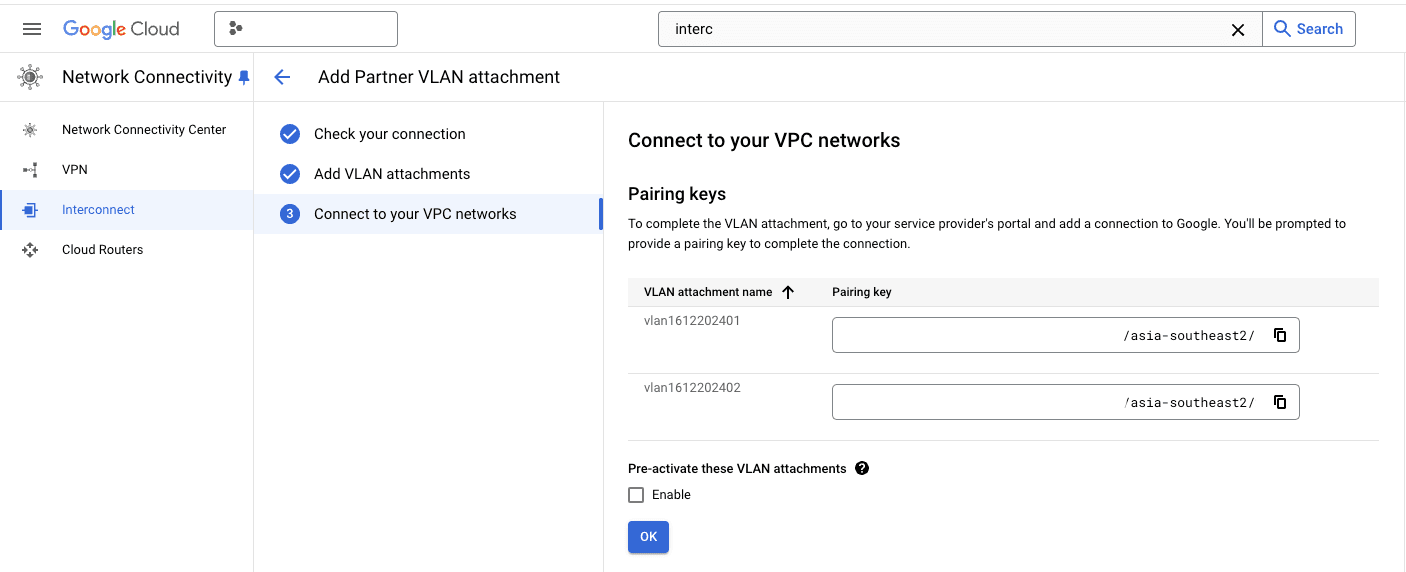
To create a connection to GCP Partner Interconnect using Cloud Connect:
- Log in to Cloud Connect Portal.
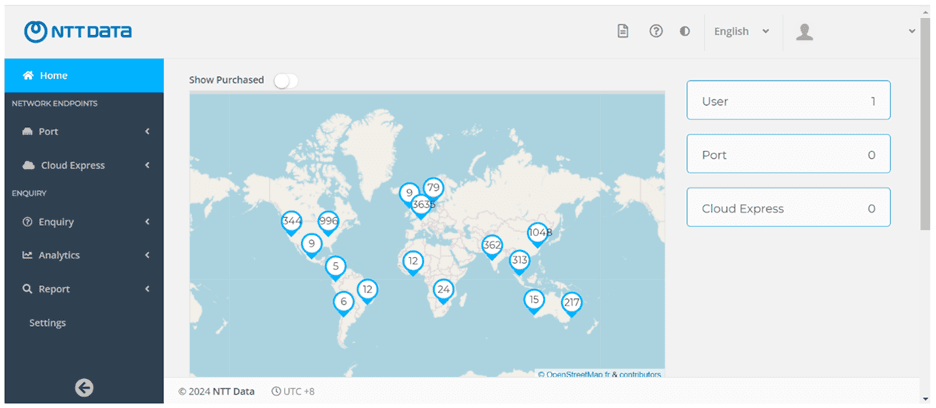
- Go to the left side of the Dashboard, then click the Cloud Express
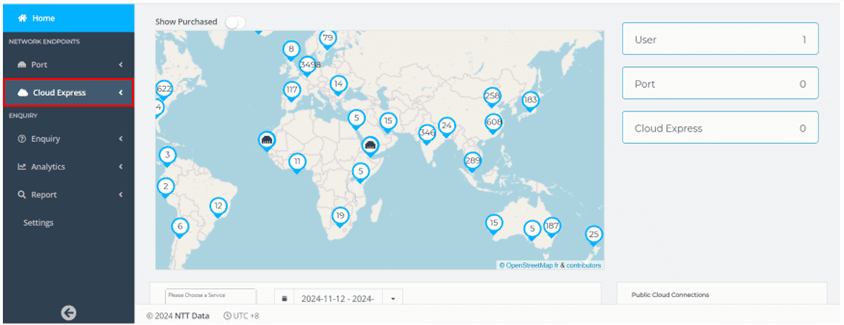
- Select the Create GCP Partner Interconnect.
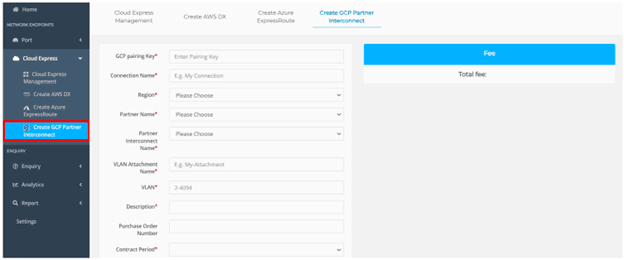
- Specify the GCP Partner Interconnect
- Enter your GCP Pairing Key, paste pairing key from the clipboard before.
- Enter your Connection Name.
- Select your Region, choose asia-southeast2.
- Select your Partner Name.
- Select your Partner Interconnect Name.
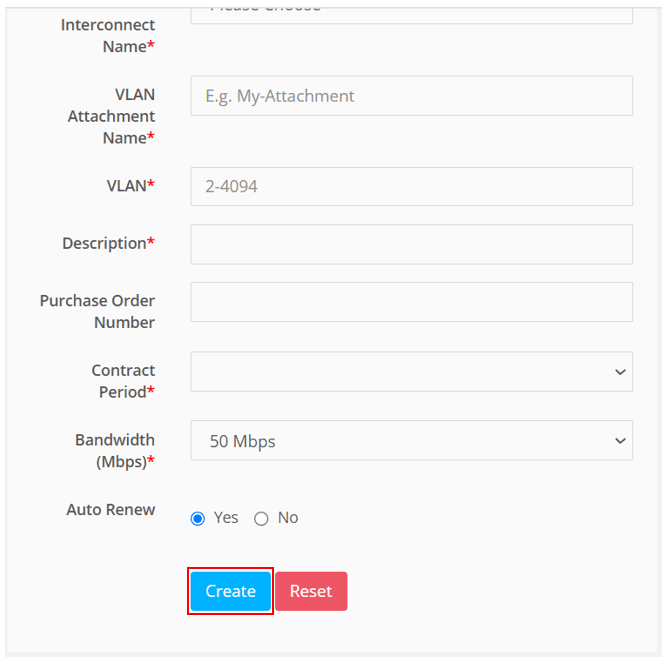
- Enter your VLAN Attachment Name.
- Enter your VLAN.
- Enter your Description.
- (Optional) Enter your Purchase Order Number.
- Select your Contract Period, the minimum period is 1 Year.
- Select your Bandwidth (Mbps), consist of 50 Mbps until 1000 Mbps
- (Optional) Select Auto Renew between Yes or No.
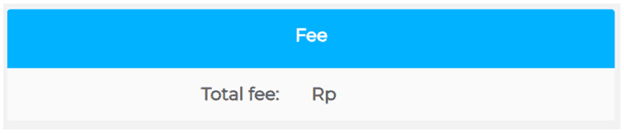
- In the right side of the port details page, you will view the Summary Fee of your order.
- Review your creation information, then click Create at the bottom page to create the GCP Interconect or Reset if you want to erase your creation information
 Please repeat same steps 1-6 to provision the other GCP pairing keys
To Activate GCP Interconnect:
- Go to theGCP Console, navigate to Networking Connectivity > Interconnect section.
- Click Refresh at the top of the window page. The status displays Activate needed
- Click Activate