Azure ExpressRoute
Create an Azure ExpressRoute Connection
This topic describes how to create an Azure ExpressRoute in the Cloud Connect Portal from Cloud Express.
Prequisites
Before proceeding to order an Azure ExpressRoute connection, you must have:
- A Microsoft Azure Account.
- An ExpressRoute Service Key.
- A Cloud Connect account, ensure that you have set up your Cloud Connect Portal Account.
How to Create an Azure ExpressRoute Connection
To create an ExpressRoute Service Key:
- Log in to the Microsoft Azure Portal.
- Navigate to Create ExpressRoute menu in Azure Portal.
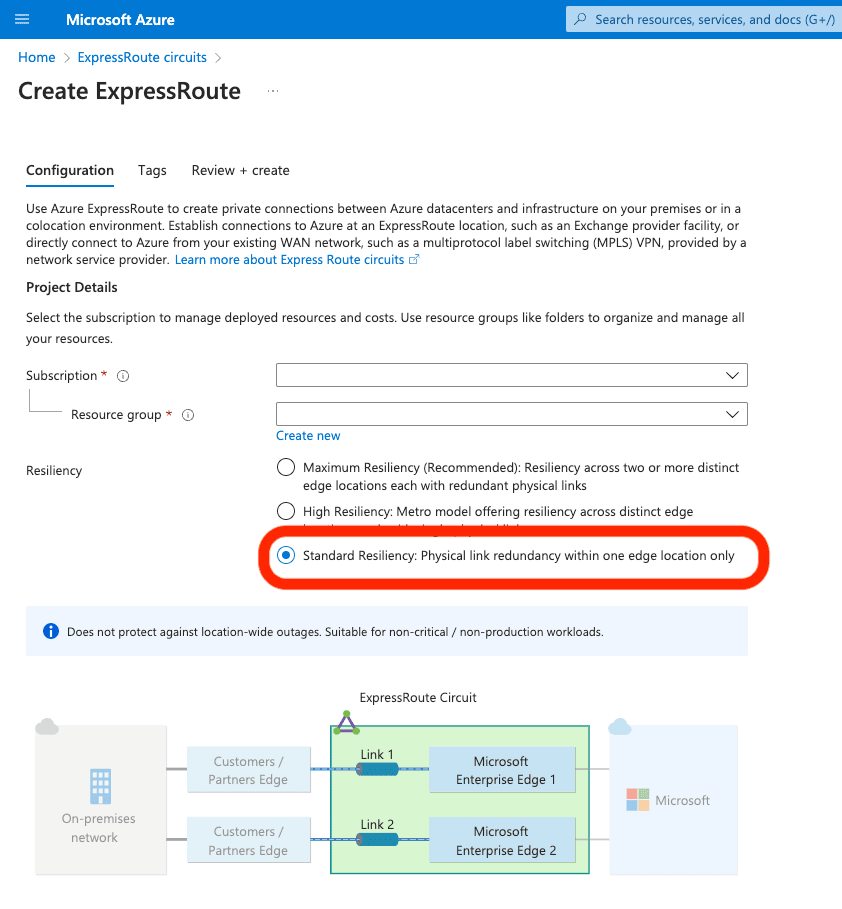
- Fill the Project Details:
- Enter your Subscription.
- Enter your Resource group.
- Select your Resiliency,choose Standard Resiliency, Physical link redundancy within one edge location only
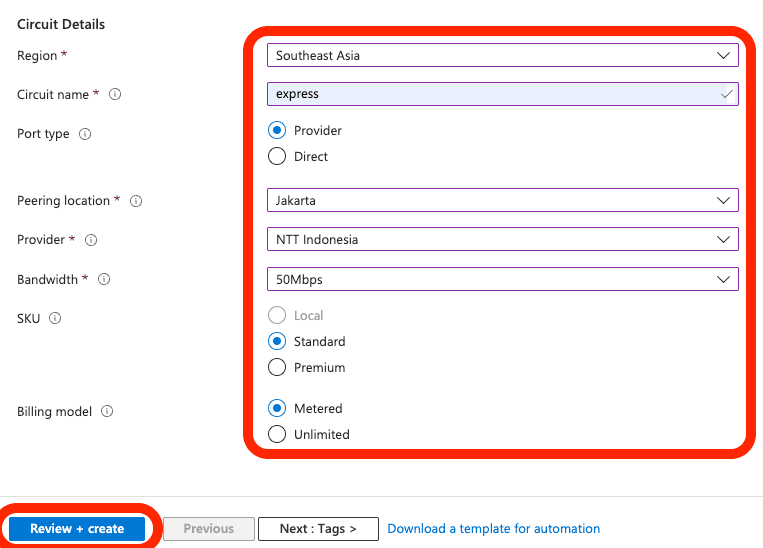
- Fill the Circuit details:
- Select the Region,choose Southeast Asia
- Enter the Circuit name.
- Select the Port Typeas Provider
- Select the Peering Location in Jakarta.
- Select the Provider, choose NTT Indonesia
- Select the Bandwith.
- Select the SKU.
- Select the Billing model
- Review your Circuit details, then click Review + Create.
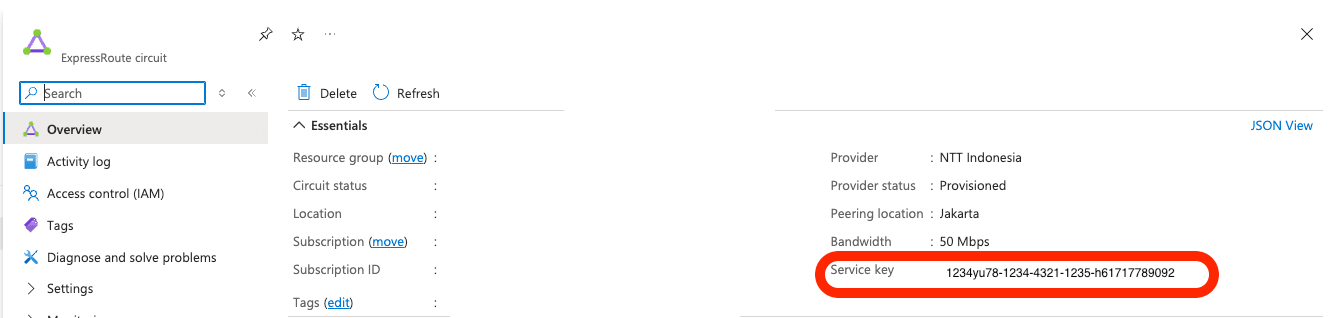
- Copy the Service Key provided in the clipboard.
To create a connection to Azure ExpressRoute using Cloud Connect:
- Log in to Cloud Connect Portal.
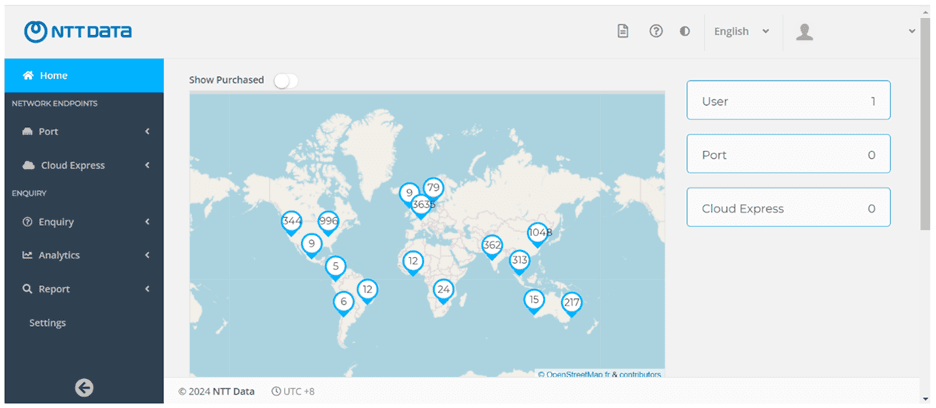
- Go to the left side of the Dashboard, then click the Cloud Express
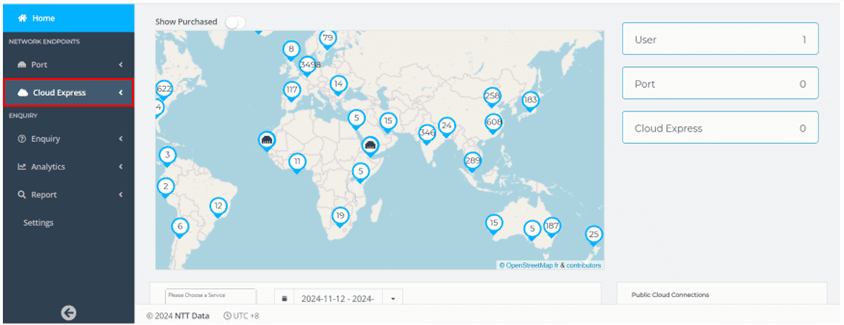
- Select the Create Azure ExpressRoute menu
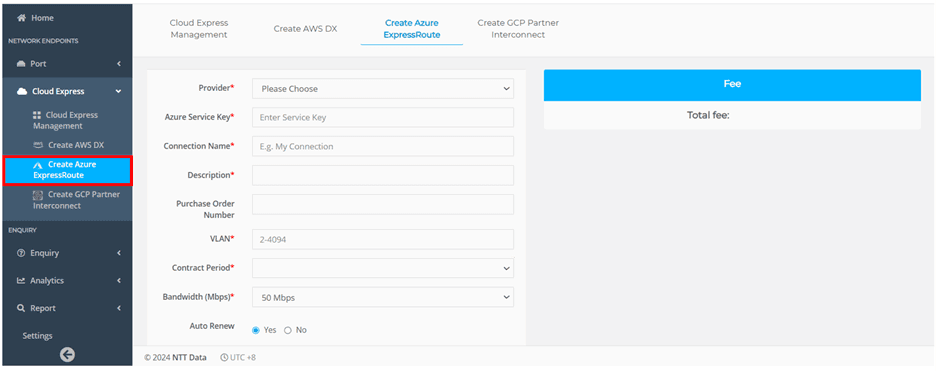
- Specify the Azure ExpressRoute.
- Enter your Provider. Choose NTT Indonesia.
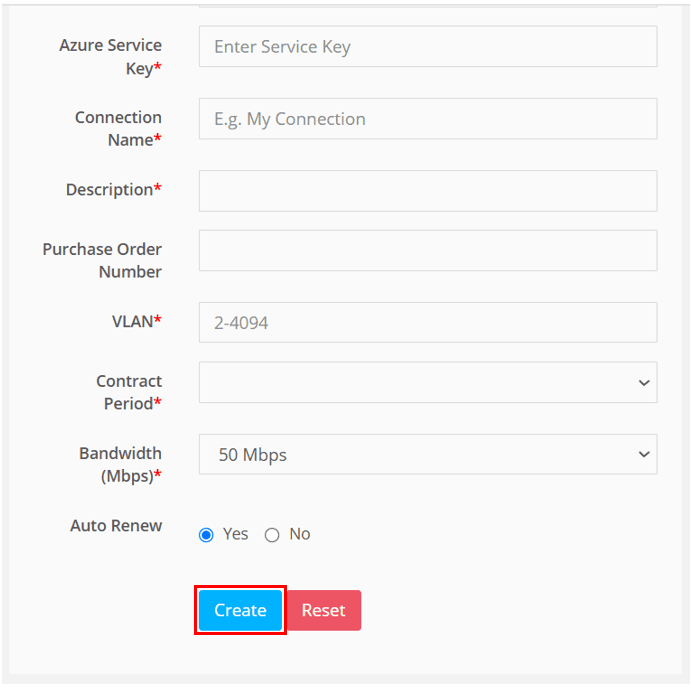
- Enter the Azure Service Key.
- Enter your Connection Name.
- (Optional) Enter your Description.
- (Optional) Enter your Purchase Order Number.
- Enter your VLAN.
- Select your Contract Period, the minimum period is 1 Year.
- Select your Bandwidth (Mbps), consist of 50 Mbps until 1000 Mbps.
- (Optional) Select Auto Renew between Yes or No.
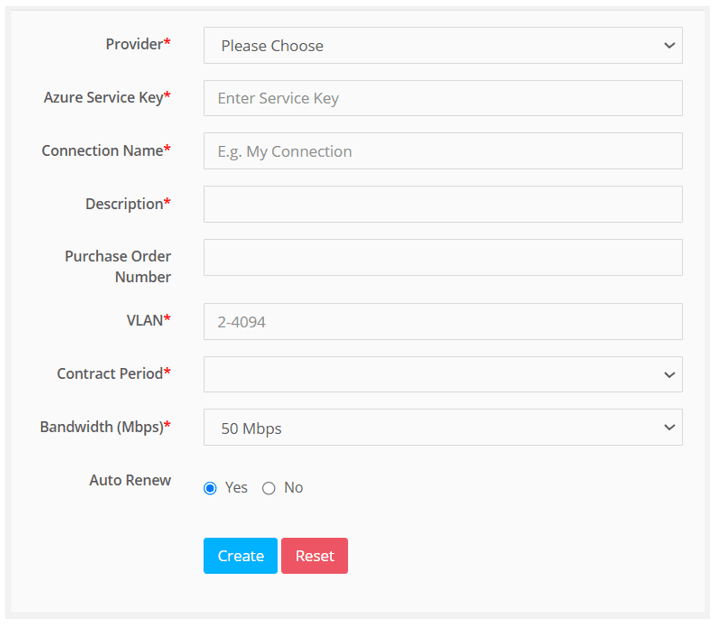
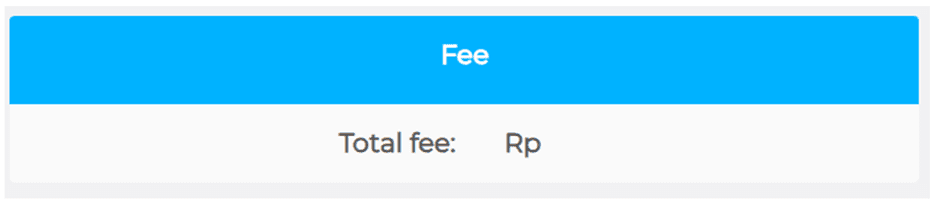
- In the right side of the port details page, you will view the Summary Fee of your order.
- Review your creation information, then click Create at the bottom page to create the Azure express route or Reset if you want to erase your creation information.
To monitor the status of Microsoft Azure ExpressRoute Connection:
- Go to Microsoft Azure Portal, navigate to Connections > Connections Inventory.
- The Azure Connection has these following states:
- Not Provisioned – The provisioning process is starting with Microsoft Azure.
- Provisioned – Provisioning completed with Microsoft Azure.
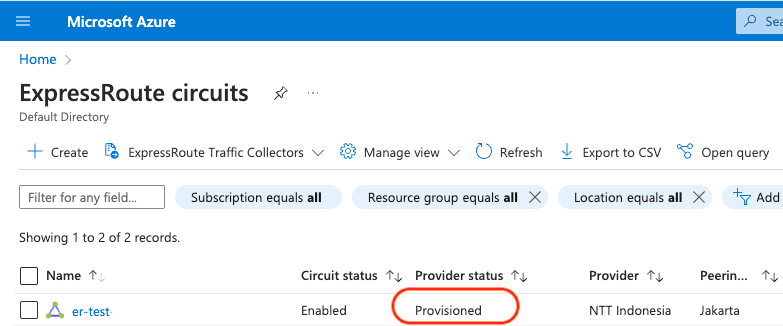
The state will be “Not provisioned” for a few minutes. After the connection is established, the state changes to “Provisioned“.