Create AWS DX
Create an AWS DX Connection
This topic describes how to create an AWS DX in the Cloud Connect Portal from Cloud Express menu.
Prequisites
Before proceeding to order an AWS DX Connection, you must have:
- An AWS Account
- A Cloud Connect account, ensure that you have set up your Cloud Connect Portal Account.
How to Create an AWS DX
To create an AWS DX connection:
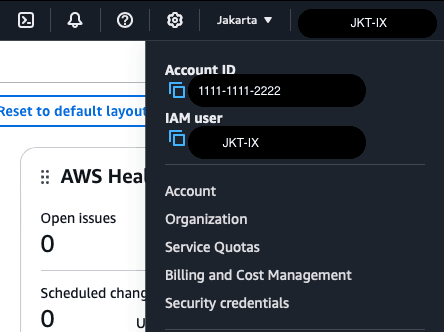
- Log in to the AWS Management Console click your username in the top-right corner, then copy your account identifier.
- Log in to Cloud Connect Portal.
- Go to the left side of the Dashboard, then click the Cloud Express menu.
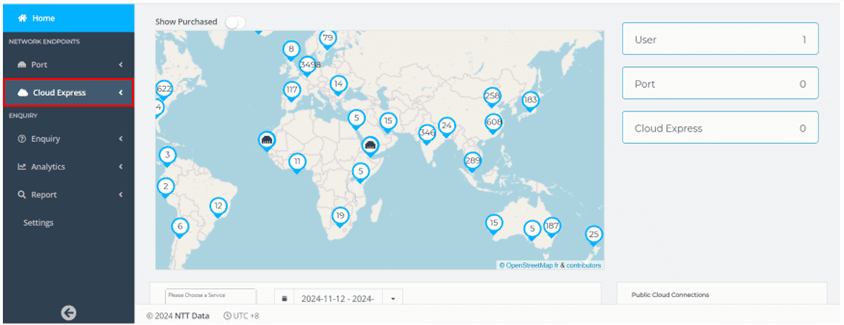
- Select the Create AWS DX menu
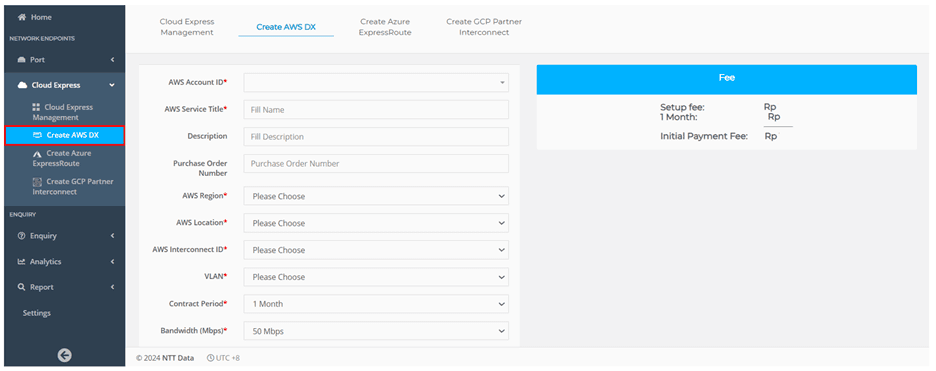
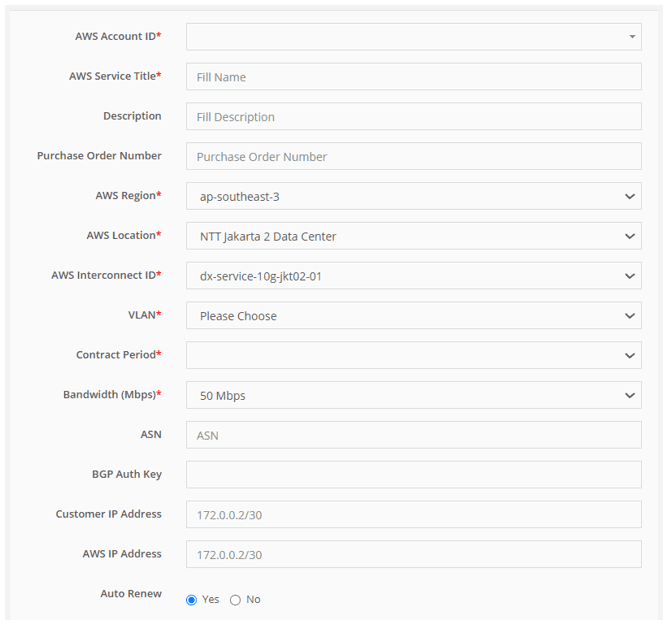
- Specify the AWS DX details
- Enter your AWS Account ID.
- Enter the name for your AWS Service Title.
- (Optional) Enter your description.
- (Optional) Enter purchase order number.
- Select your AWS Region, choose ap-southeast-3.
- Select your AWS Location, choose NTT Jakarta 2 Data Center.
- Select your AWS Interconnect, choose dx-service-10g-jkt2-01.
- Select your VLAN.
- Select your Contract Period, the minimum period is 1 Year.
- Select your Bandwitdh (Mbps), consist of 50 Mbps until 1000 Mbps.
- (Optional) Enter your ASN (Autonomous System Number).
- (Optional) Enter your BGP Auth Key.
- (Optional) Enter your Customer IP Address.
- (Optional) Enter your AWS IP Address.
- (Optional) select Auto Renew between yes or no
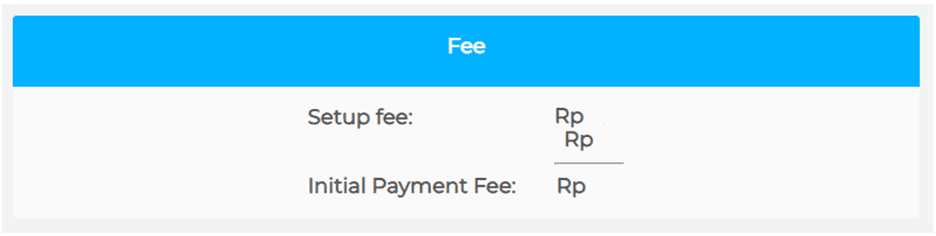
- In the right side of the port details page, you will view the Summary Fee of your order.
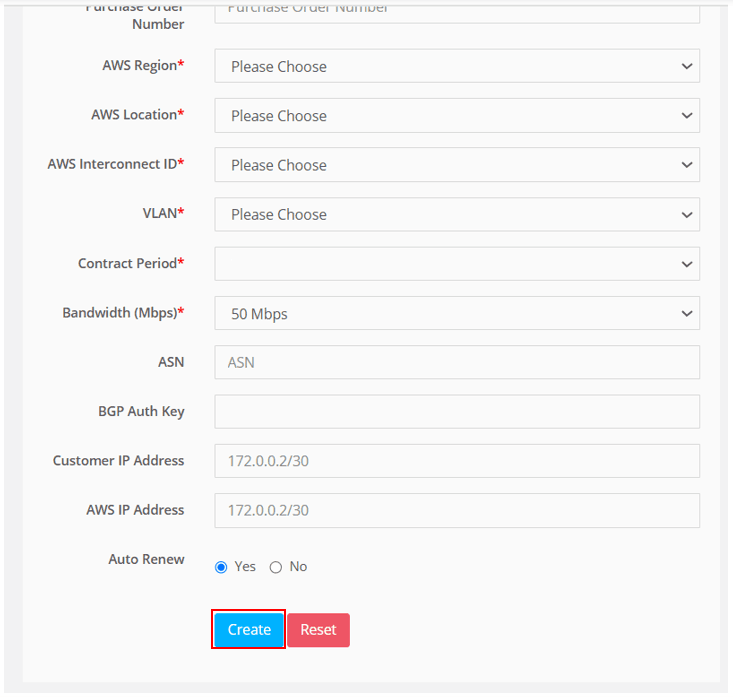
- Review your creation information, then click Create at the bottom page to create the AWS DX or Reset if you want to erase your creation information.
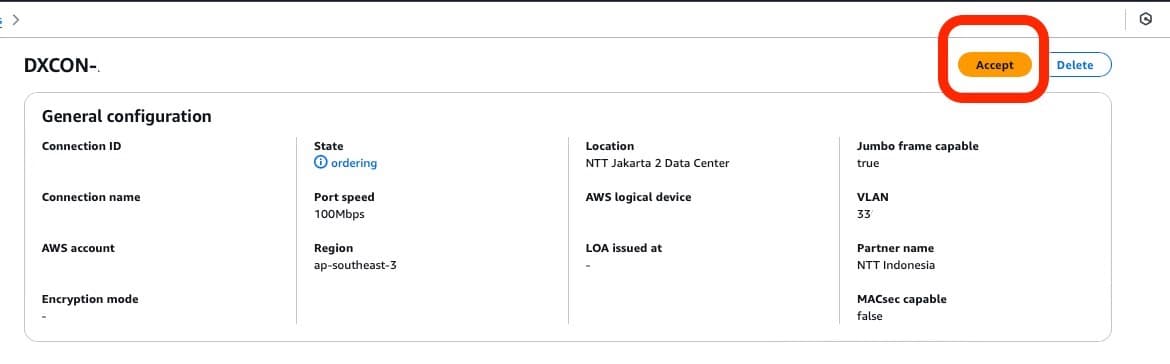
To Accept AWS DX Connection:
- Log in to the AWS Management Console navigate to Services > AWS Direct Connect > Connections then click the connection name.
- Click Accept at the top right of the dashboard.